
Your HostByte Game Panel is your central hub for managing your game server. This guide shows you how to access and navigate your Game Panel.
What is the Game Panel?
The HostByte Game Panel provides everything you need to manage your game server:
- Server Control - Start, stop, and restart your server
- File Management - Access and edit server files
- Console Access - View server logs and send commands
- Backup System - Create and restore backups
- Plugin Management - Install and manage plugins
- Server Settings - Configure server properties
- Player Management - Manage players and permissions
- SFTP Access - Connect via SFTP for file transfers
Step 1: Log into Your HostByte Account
Access your Game Panel through your HostByte account:
- To access your game panel first check your email to get your login infomation
- Sometimes the email could take a few minutes also be sure to check your spam.
- Go to game.hostbyte.net
- Enter your Email and Password from your email
- Click "Sign In" to access your dashboard
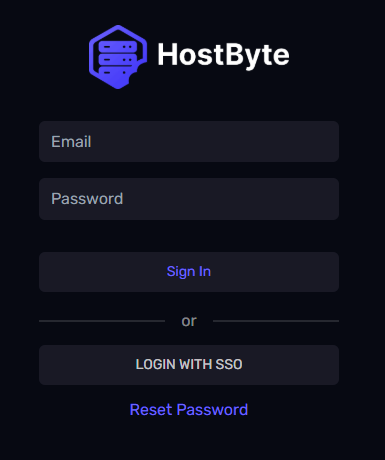
➡️ Note: If you forgot your password, use the "Reset Password" link to reset it.
Step 2: Navigate to Your Server
Find and access your game server:
- After logging in, you'll see your dashboard and your server
- Click on your server name or "Manage" button
- This will open your Game Panel
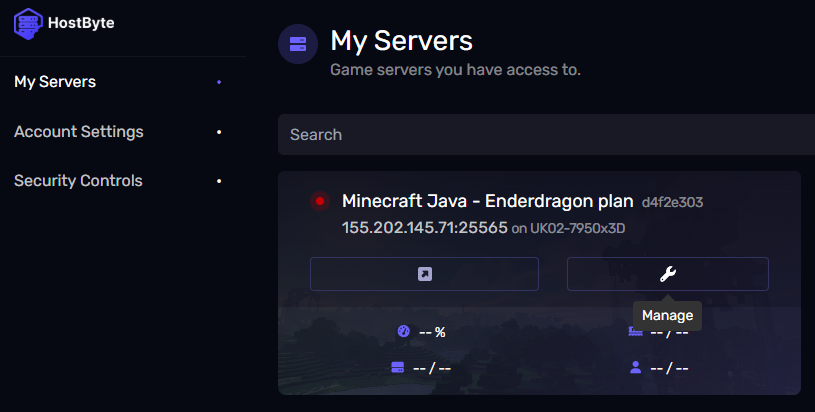
➡️ Note: If you have multiple servers, make sure you're selecting the correct one.
Step 3: Understanding the Game Panel Interface
Your Game Panel is organized into different sections:
Main Dashboard
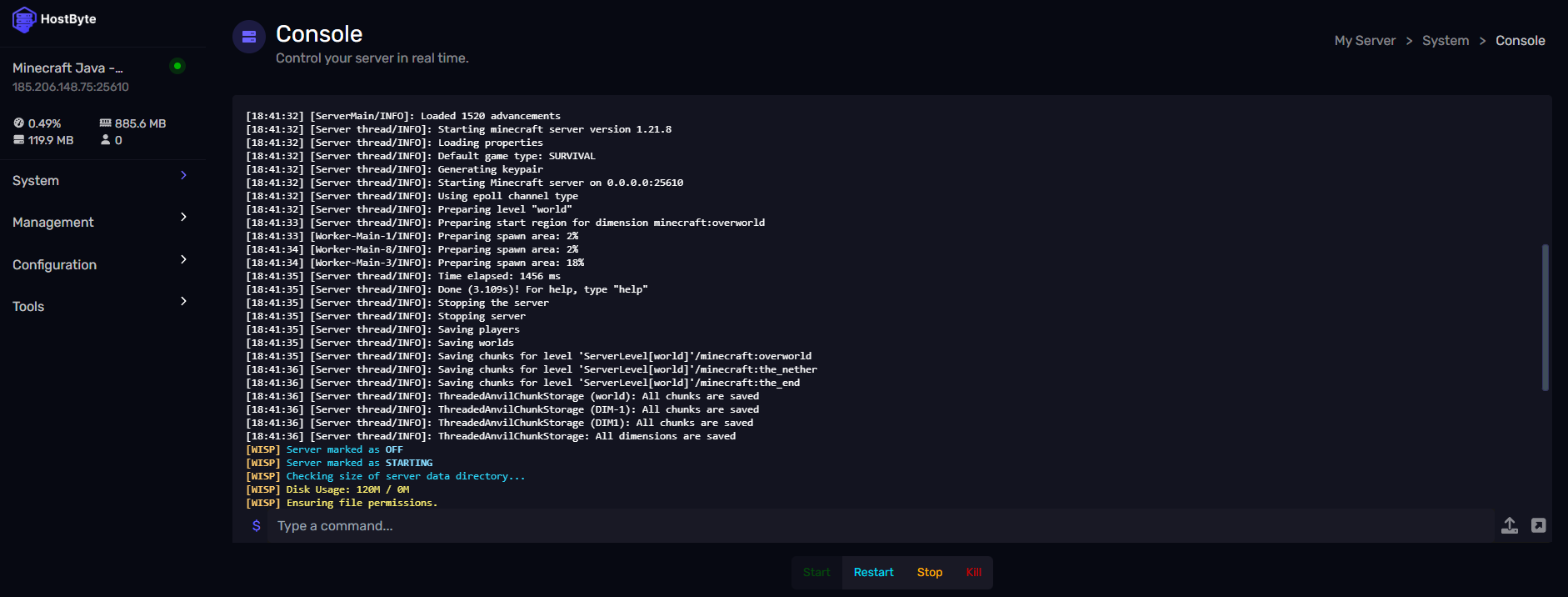
- Server Status - Shows if server is online/offline
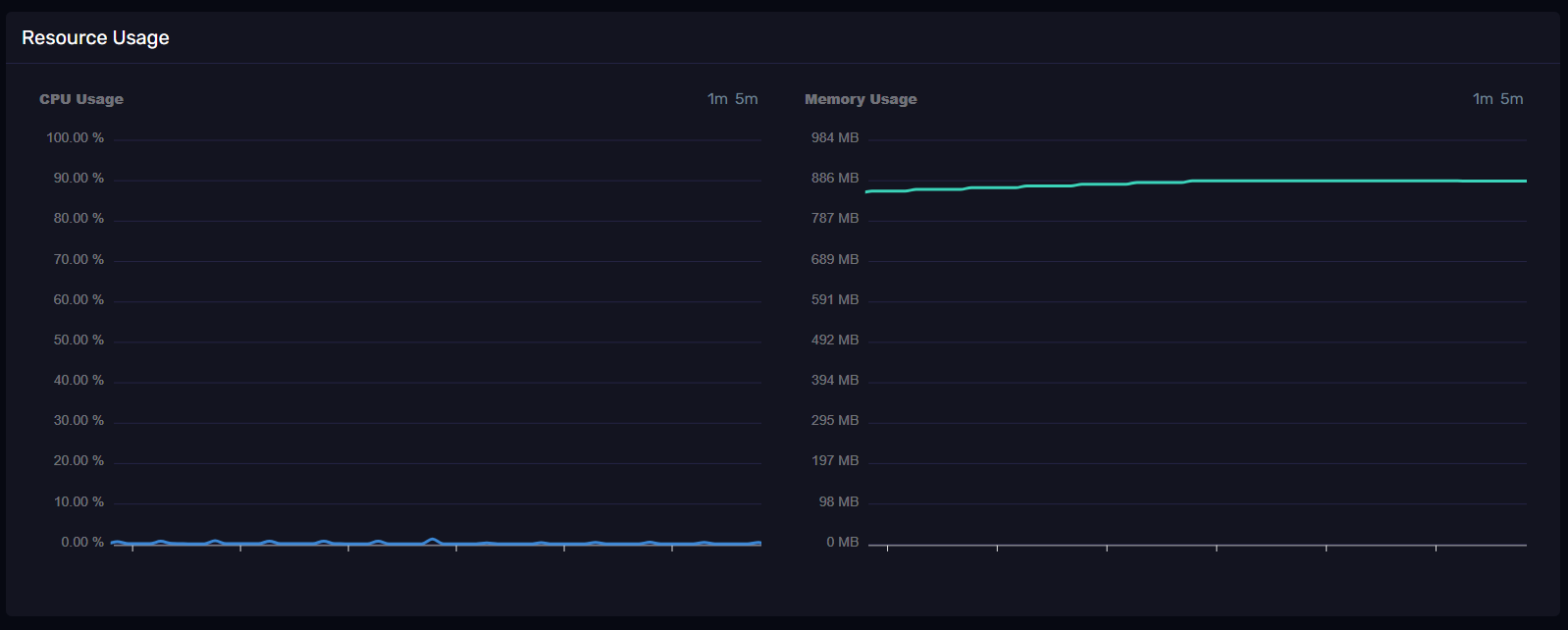
- Resource Usage - CPU, RAM, and storage usage
- Player Count - Current online players
- Uptime - How long server has been running
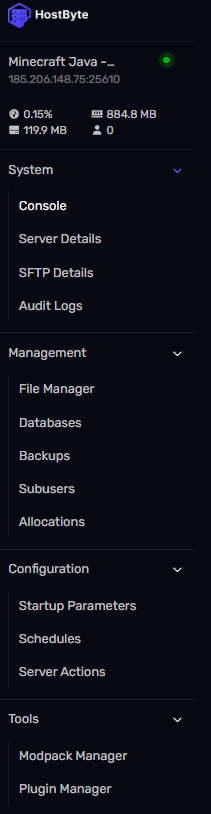
Left Sidebar Navigation
System
- Console: View and manage your server’s live console.
- Server Details: View server IP, port, and status.
- SFTP Details: Get connection info for SFTP file access.
- Audit Logs: Track server events and user actions.
Management
- File Manager: Browse and edit your server files.
- Databases: Manage linked databases.
- Backups: Create and restore server backups.
- Subusers: Add or manage server subusers.
- Allocations: View or assign IP addresses and ports.
Configureation
- Startup Parameters: Customize your server's startup options.
- Schedules: Automate server tasks and commands.
- Server Actions: Perform actions like restart, stop, or kill.
Tools
- Modpack / Addon Manager: Install modpacks, plugins, or addons (varies by game).
Step 4: Basic Panel Operations
Essential actions you can perform:
Server Control
- Start Server - Click "Start" to power on your server
- Stop Server - Click "Stop" to shut down your server
- Restart Server - Click "Restart" to reboot your server
- Kill Server - Force stop if server is unresponsive
- Join Server - Click "Join Server" to join the server (works best with steam games)

⚠️ Common Access Issues
Solutions for frequent login problems:
Can't Log In
- Check Credentials - Verify email/username and password
- Reset Password - Use "Forgot Password" if needed
- Clear Browser Cache - Clear cookies and cache
- Try Different Browser - Test with Chrome, Firefox, or Edge
- Check Internet Connection - Ensure stable connection
Server Not Showing
- Check Account - Ensure you're logged into correct account
- Server Status - Server might be suspended or expired
- Contact Support - If server should be visible but isn't
Panel Loading Slowly
- Check Internet - Ensure stable connection
- Clear Cache - Clear browser cache and cookies
- Try Different Browser - Some browsers work better
- Check Server Status - Server might be under maintenance
- You can also check the Status of any of HostByte services - Go to status.hostbyte.net
Security Best Practices
Keep your Game Panel secure:
- Strong Password - Use a unique, strong password
- Two-Factor Authentication - Enable 2FA if available
- Logout When Done - Always logout after using the panel
- Secure Connection - Only access via HTTPS
- Monitor Activity - Check for unauthorized access
- Keep Credentials Safe - Don't share login information
Getting Help
If you need assistance with the console, you can find help through the following resources:
- Knowledge Base: Check our comprehensive guides.
- Support Ticket: Submit a ticket for technical issues.
- Discord: Join our community using the widget below.
- Community Forum: Connect with other server owners.
- Video Tutorials: Coming soon.
