
SFTP (SSH File Transfer Protocol) allows you to directly access and manage your server files. This guide shows you how to connect to your HostByte server using SFTP.
What is SFTP?
SFTP is a secure way to transfer files between your computer and your game server:
- Secure Connection - Encrypted file transfers
- Direct File Access - Manage files directly on your server
- Backup Capabilities - Download important files for backup
- Plugin Management - Upload custom plugins and mods
- Configuration Editing - Edit server configuration files
- World File Access - Download or upload world files
Finding Your SFTP Connection Details
Get your SFTP connection information from your HostByte Game Panel:
- Log into the HostByte Panel - How to Acess Your Game Panel
- Navigate to your game server
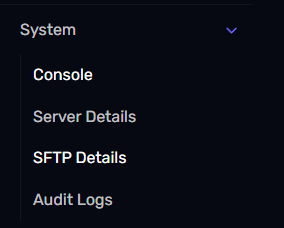
- Look for "System" in the left sidebar
- Click on "SFTP Details"
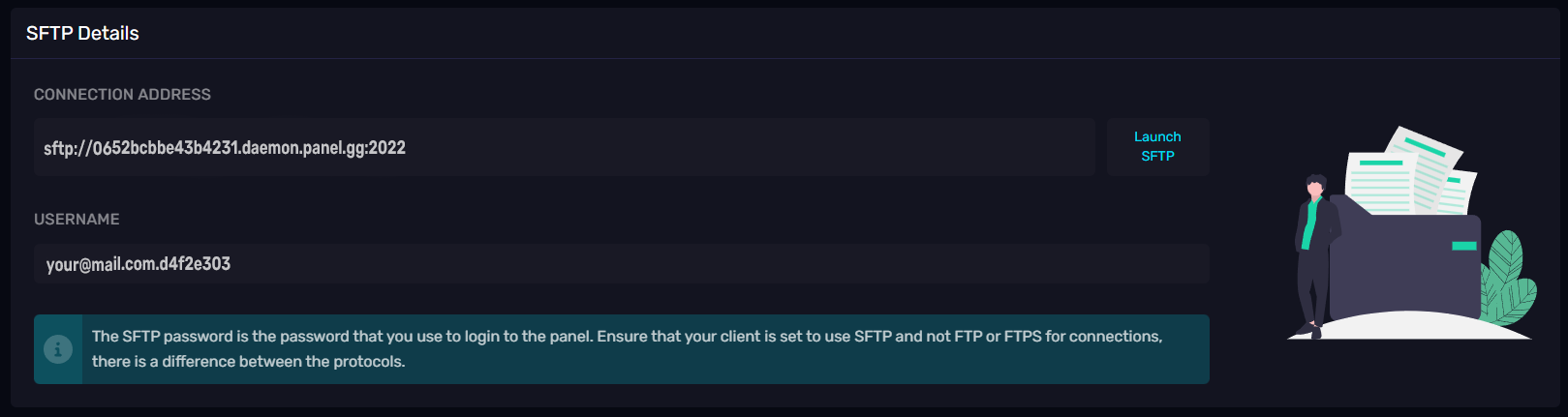
Information You'll Find
- Connection Address - Your server's SFTP address
- Username - Your SFTP username
- Port - Usually 2022
- Password - Your password is the same as your HostByte Game Panel Login
Connecting with FileZilla (Recommended)
FileZilla is a free, user-friendly SFTP client:
Download and Install
- Download FileZilla from FileZilla Download
- Install FileZilla on your computer
- Open FileZilla
Connection Setup
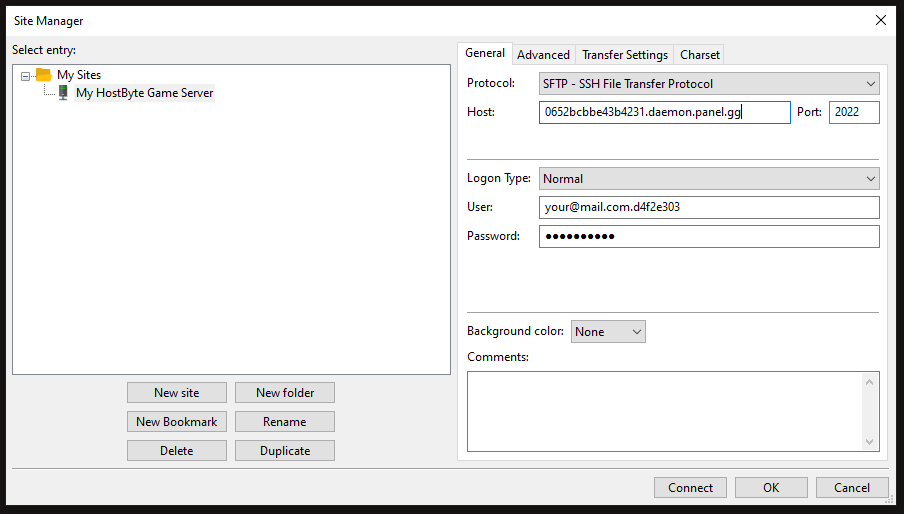
- Click "File" → "Site Manager"
- Click "New Site" and name it (e.g., "My Minecraft Server")
- Enter your connection details:
- Host: Your SFTP address from the panel
- Port: 2022 (or the port shown in your panel)
- Protocol: SFTP - SSH File Transfer Protocol
- Logon Type: Normal
- User: Your SFTP username from the panel
- Password: Your HostByte Game Panel password
Connecting
- Click "Connect" in Site Manager
- If prompted about unknown host key, click "OK"
- You should now see your server files on the right side
Connecting with WinSCP (Windows)
WinSCP is another popular SFTP client for Windows:
Download and Install
- Download WinSCP from winscp.net
- Install WinSCP on your computer
- Open WinSCP
Connection Setup
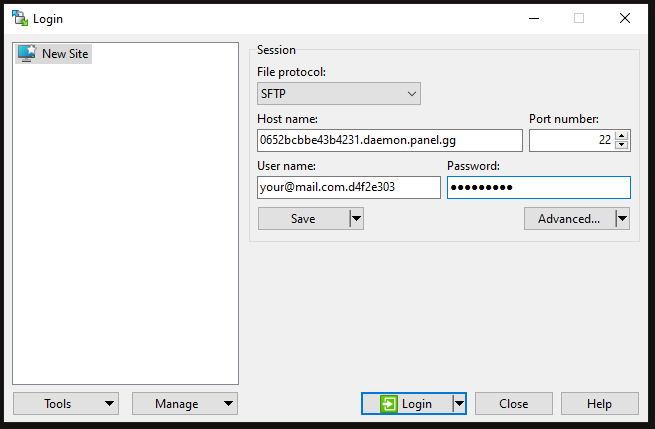
- Select "SFTP" as the file protocol
- Enter your connection details:
- Host name: Your SFTP address from the panel
- Port number: 2022 (or the port shown in your panel)
- User name: Your SFTP username from the panel
- Password: Your HostByte Game Panel password
Connecting
- Click "Login"
- If prompted about server fingerprint, click "Yes"
- You should now see your server files
Connecting with Cyberduck (Mac)
Cyberduck is a popular SFTP client for Mac users:
Download and Install
- Download Cyberduck from cyberduck.io
- Install Cyberduck on your Mac
- Open Cyberduck
Connection Setup
- Click "Open Connection"
- Select "SFTP (SSH File Transfer Protocol)"
- Enter your connection details:
- Server: Your SFTP address from the panel
- Port: 2022 (or the port shown in your panel)
- Username: Your SFTP username from the panel
- Password: Your HostByte Game Panel password
Connecting
- Click "Connect"
- If prompted about unknown host, click "Allow"
- You should now see your server files
Understanding Your Server Directory
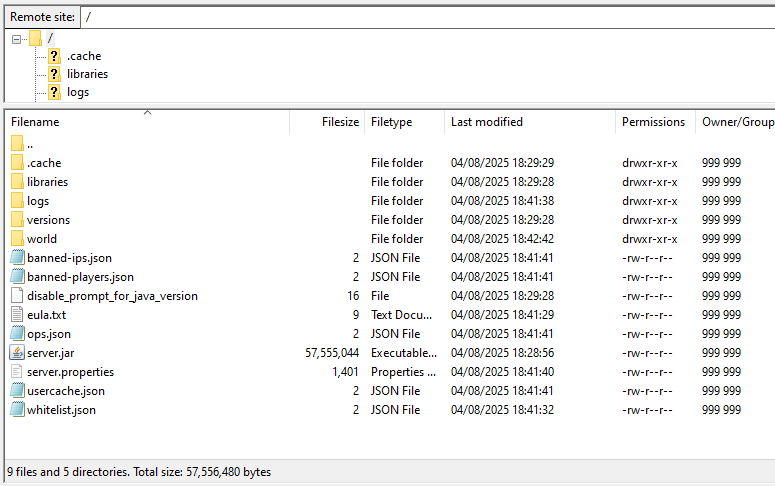
Once connected, you'll see your server's file structure for example Minecraft:
Common Directories
- plugins/ - Minecraft plugins
- worlds/ - Minecraft world files
- config/ - Server configuration files
- logs/ - Server log files
- backups/ - Server backup files
- mods/ - Forge mod files
Important Files
- server.properties - Main server settings
- spigot.yml - Spigot configuration
- bukkit.yml - Bukkit configuration
- paper.yml - Paper configuration
- ops.json - Server operator list
- whitelist.json - Player whitelist
Basic SFTP Operations
Common tasks you can perform with SFTP:
File Management
- Upload Files - Drag files from your computer to the server
- Download Files - Drag files from server to your computer
- Create Folders - Right-click and create new directories
- Delete Files - Select files and delete them
- Rename Files - Right-click and rename files
- Edit Files - Open files in text editor
Best Practices
- Backup Before Changes - Always backup important files
- Test Changes - Test modifications on a copy first
- Use Text Editors - Edit config files with proper text editors
- Check Permissions - Ensure files have correct permissions
- Monitor File Sizes - Large files may take time to transfer
⚠️ Common Issues and Solutions
Solutions for frequent SFTP problems:
Connection Fails
- Check Credentials - Verify username and password
- Verify Address - Ensure SFTP address is correct
- Check Port - Confirm port number (usually 2022)
- Server Status - Ensure your server is online
- Firewall - Check if firewall blocks SFTP
File Transfer Issues
- Large Files - Large files may timeout, try smaller chunks
- Permission Errors - Some files may be read-only
- Disk Space - Check available storage on server
- Network Issues - Try reconnecting if transfer fails
Security Warnings
- Host Key Warning - Normal for first connection, click "OK"
- Certificate Warning - Usually safe to proceed
- Unknown Host - Accept the host key to continue
Getting Help
If you need assistance with the console, you can find help through the following resources:
- Knowledge Base: Check our comprehensive guides.
- Support Ticket: Submit a ticket for technical issues.
- Discord: Join our community using the widget below.
- Community Forum: Connect with other server owners.
- Video Tutorials: Coming soon.
