
How to Update Your Garry's Mod Server
Keeping your Garry's Mod server up to date ensures compatibility with the latest addons, fixes bugs, and improves stability. This guide shows you how to update your server using the HostByte Game Panel.
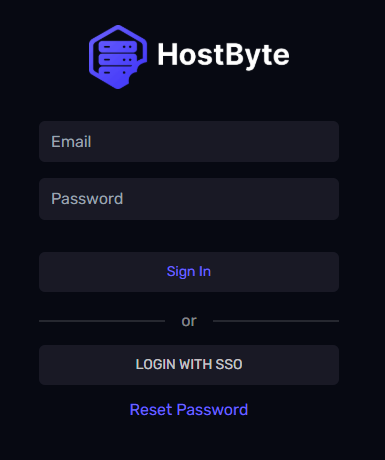
Step 1: Access Your Game Panel
- Go to game.hostbyte.net
- Log in to your account
- Select your Garry's Mod server
- Click Manage
Step 2: Update Your Server
Garry's Mod servers update automatically when you restart them.
- Click Restart in your panel
- Wait for the server to fully restart
- If an update is available, it will be applied during startup
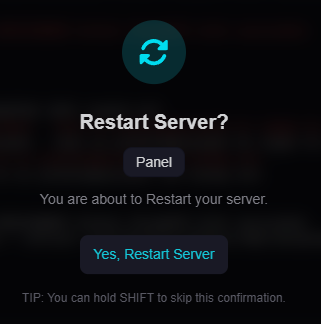
Tip: You do not need to manually reinstall your server. Restarting will handle updates automatically.
Step 3: Verify the Update
- Open the Console
- Check for any errors during startup
- Join your server to confirm everything is working
⚠️ Important Notes Before Updating
- Backups: It is recommended to create a backup before restarting
- Addons: Some addons may require updates after a game update
- Gamemodes: Ensure compatibility with the latest version
Troubleshooting
Server Not Starting After Update
- Check the console for errors
- Remove recently added or outdated addons
- Restart the server again
Addons Not Working
- Ensure addons are compatible with the latest version
- Reinstall or update addons if needed
- Check for missing dependencies
Update Not Applying
- Restart the server again
- Wait for the server to fully load
- Check console logs for update activity
Next Steps
- Update your addons and gamemodes
- Test your server with players
- Continue configuring your server
- Monitor server performance
Getting Help
- Knowledge Base: Explore more guides for configuration, setup, and troubleshooting.
- Support Ticket: Open a ticket from your HostByte account if you need assistance.
- Discord: Join our community below.
- Status Page: Check live updates at status.hostbyte.net.
