
How to Change Your Garry's Mod Server Name
Changing your Garry's Mod server name allows you to customize how your server appears in the server browser. This guide shows you how to update your server name using the server.cfg file.
Step 1: Access Your Server Files
- Log in to your HostByte Game Panel
- Select your Garry's Mod server
- Click Manage
- Open the File Manager
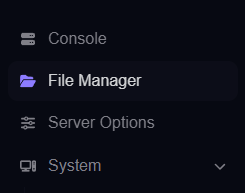
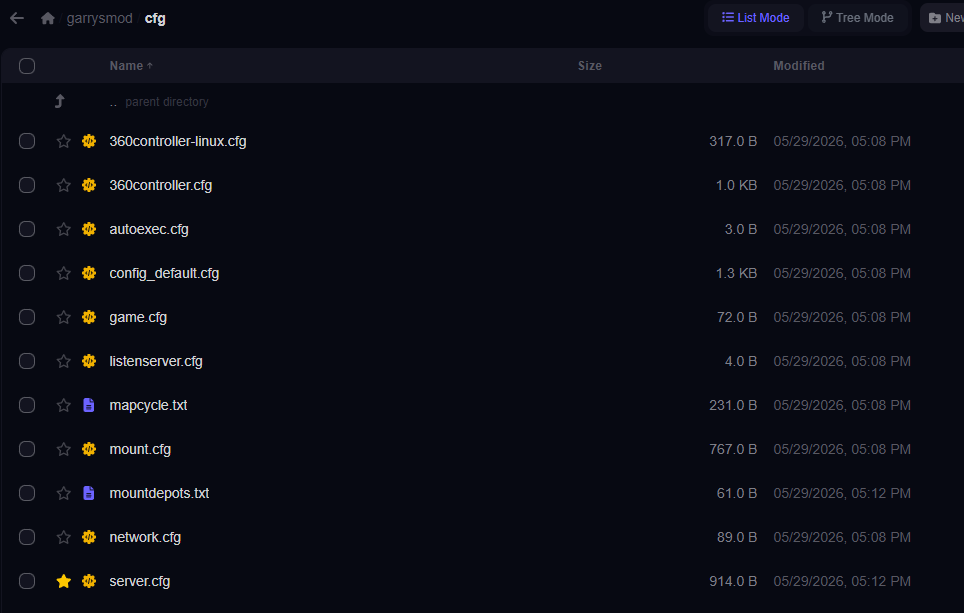
Step 2: Locate server.cfg
- Navigate to the following folder:
/garrysmod/cfg/- Find the file named server.cfg
- If it does not exist, create a new file with this name
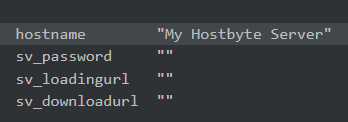
Step 3: Change the Server Name
- Open server.cfg
- Add or edit the following line:
hostname "My Garry's Mod Server"- Replace the name inside the quotes with your desired server name
- Save the file
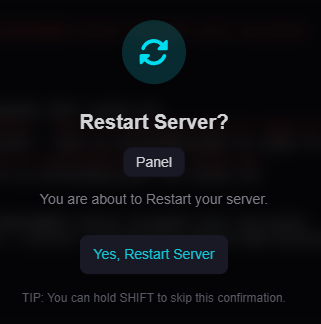
Step 4: Restart Your Server
- Return to your panel dashboard
- Click Restart
- Wait for the server to come back online
Note: Your new server name will appear once the server has fully restarted.
Troubleshooting
Server Name Not Updating
- Ensure the server was restarted after changes
- Check for duplicate hostname lines
- Make sure the file is saved correctly
Server Not Showing Correct Name
- Refresh the server browser
- Reconnect to the server
- Wait a few minutes for changes to update
File Not Found
- Create a new server.cfg file if missing
- Ensure it is in the correct directory
Next Steps
- Customize your server settings further
- Install addons and gamemodes
- Set up admin permissions
- Optimize your server performance
Getting Help
- Knowledge Base: Explore more guides for configuration, setup, and troubleshooting.
- Support Ticket: Open a ticket from your HostByte account if you need assistance.
- Discord: Join our community below.
- Status Page: Check live updates at status.hostbyte.net.
