
How to Restart Your Garry's Mod Server
Restarting your Garry's Mod server is essential after making changes to configuration files, installing addons, or updating your server. This guide shows you how to safely restart your server using the HostByte Game Panel.
Step 1: Access Your Game Panel
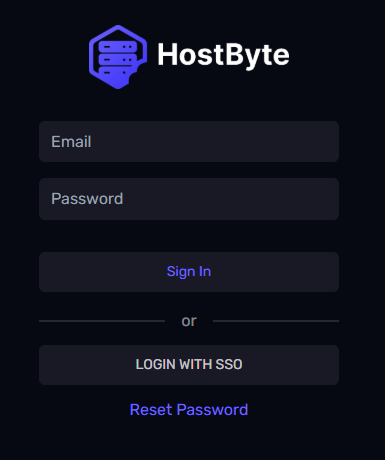
- Go to game.hostbyte.net
- Log in to your account
- Select your Garry's Mod server
- Click Manage
Step 2: Restart Your Server
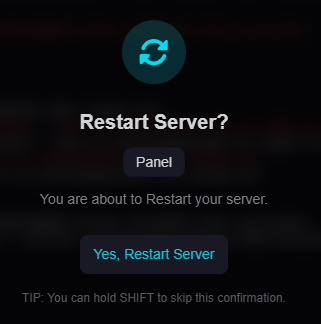
- On the main dashboard, click Restart
- Wait for the server to stop and start again
- Monitor the Console to ensure it loads correctly
Tip: Restarting ensures all changes are applied properly.
Alternative: Stop and Start Manually
If needed, you can restart your server manually:
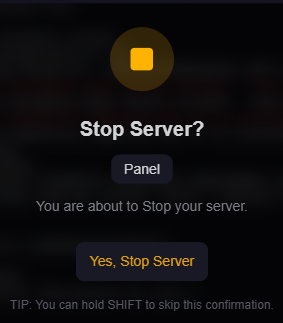
- Click Stop
- Wait until the server is fully offline
- Click Start
When Should You Restart Your Server?
- After editing server.cfg
- After installing or updating addons
- After changing gamemode or map
- After modifying server settings
⚠️ Common Restart Issues
Server Not Coming Back Online
- Check the console for errors
- Ensure configuration files are correct
- Try starting the server again manually
Changes Not Applying
- Make sure the server fully restarted
- Check if files were saved correctly
- Clear any duplicate configuration entries
Server Stuck Stopping
- Wait a few moments for shutdown to complete
- Use the Kill option if necessary
- Start the server again after stopping
Next Steps
- Verify your changes are applied
- Test your server by joining it
- Continue configuring your server
- Install additional addons or gamemodes
Getting Help
- Knowledge Base: Explore more guides for configuration, setup, and troubleshooting.
- Support Ticket: Open a ticket from your HostByte account if you need assistance.
- Discord: Join our community below.
- Status Page: Check live updates at status.hostbyte.net.
