
The VEIN dedicated server gives full control over gameplay, performance, and world balance through two primary configuration files — Game.ini and Engine.ini. This guide explains where these files are located, how to edit them safely using the HostByte Game Panel, and which options currently work in VEIN’s latest builds.
Applies to HostByte VEIN Hosting — updated for VEIN v0.021+
Step 1 — Locate Your Configuration Files
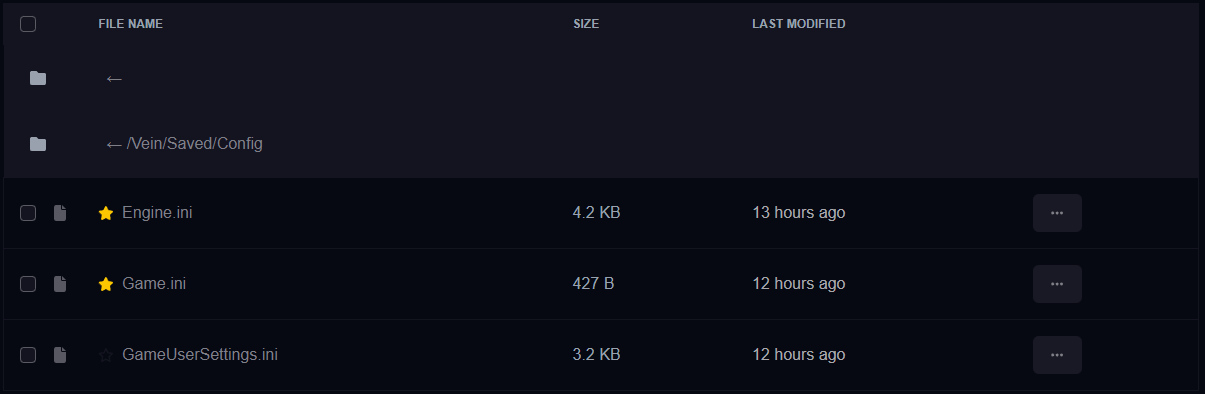
All configuration files are found inside the following directory:
Vein/Saved/Config/LinuxServer/
Game.ini— Controls gameplay, admin settings, and difficulty multipliers.Engine.ini— Controls engine-level performance and networking.
You can edit these via the HostByte File Manager or SFTP.
Step 2 — Game.ini Overview
Game.ini contains nearly all core gameplay, multiplayer, and survival balancing options.
[/Script/Engine.GameSession]
MaxPlayers=16

[/Script/Vein.VeinGameSession]
bPublic=True
ServerName=My VEIN Server
BindAddr=0.0.0.0
SuperAdminSteamIDs=76561198000000000
AdminSteamIDs=76561198111111111
HeartbeatInterval=5.0
Password=
HTTPPort=8080

[/Script/Vein.ServerSettings]
GS_HungerMultiplier=0.5
GS_ThirstMultiplier=0.5
GS_MaxThirdPersonDistance=600
GS_ShowScoreboardBadges=1

[OnlineSubsystemSteam]
GameServerQueryPort=27015
bVACEnabled=0

[URL]
Port=7777
Tip: The [URL] port must always be inside Game.ini — not Engine.ini. Placing it in Engine.ini can cause startup failures because Unreal overwrites it during launch.
Step 3 — Admin Configuration
Admins are assigned using SuperAdminSteamIDs or AdminSteamIDs. These must be placed under the [/Script/Vein.VeinGameSession] header — placing them elsewhere will cause the server to ignore them.
SuperAdminSteamIDs=76561198000000000
AdminSteamIDs=76561198111111111
- SuperAdminSteamIDs — Full access to admin tools, commands, and console.
- AdminSteamIDs — Limited permissions (reserved for future versions).
Note: If this section appears under [Script/Vein.ServerSettings], admins will not load. When set correctly, your server console logs:
LogVein: Superadmins set:
LogVein: Admins set:
Step 4 — Gameplay Variables ([ConsoleVariables])
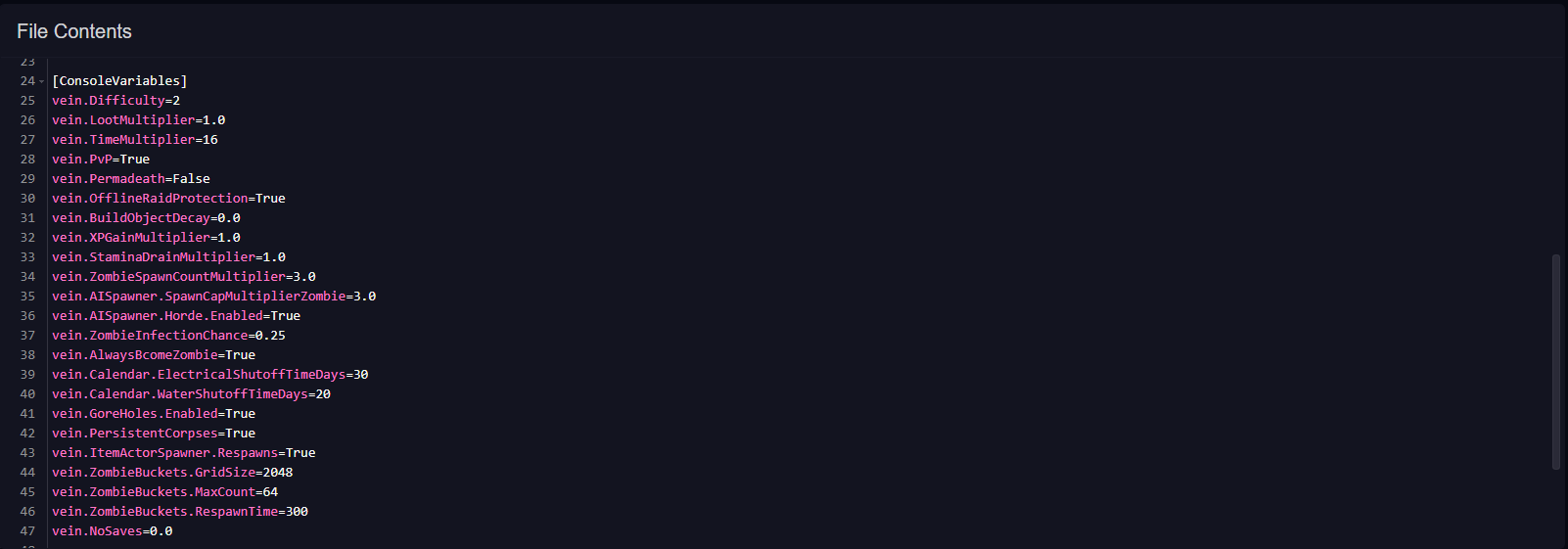
Most in-game mechanics are defined under [ConsoleVariables]. These variables allow direct tuning of world behavior, difficulty, time flow, and more.
Recommended Defaults
[ConsoleVariables]
vein.Difficulty=2
vein.LootMultiplier=1.0
vein.TimeMultiplier=16
vein.PvP=True
vein.Permadeath=False
vein.OfflineRaidProtection=True
vein.BuildObjectDecay=0.0
vein.ZombieSpawnCountMultiplier=3.0
vein.ZombieInfectionChance=0.25
vein.Calendar.ElectricalShutoffTimeDays=30
vein.Calendar.WaterShutoffTimeDays=20
vein.GoreHoles.Enabled=True
vein.PersistentCorpses=True
vein.NoSaves=0.0
| Setting | Description | Example | Status |
|---|---|---|---|
vein.Difficulty |
Adjusts zombie strength and loot scarcity (1–4). | 2 | ✅ Working |
vein.LootMultiplier |
Controls loot spawn rates. | 1.0 | ✅ Working |
vein.TimeMultiplier |
Sets day/night cycle speed. | 16 | ✅ Working |
vein.PvP |
Enables player vs player combat. | True | ⚠️ Placeholder (always enabled in current build) |
vein.Permadeath |
Deletes characters upon death. | False | ⚠️ Partial |
vein.OfflineRaidProtection |
Protects offline player bases. | True | ❌ Not functional yet |
vein.BuildObjectDecay |
Controls structure decay rate (0 disables). | 0.0 | ✅ Working |
vein.ZombieSpawnCountMultiplier |
Adjusts zombie population density. | 3.0 | ✅ Working |
vein.ZombieInfectionChance |
Chance to become infected when hit. | 0.25 | ✅ Working |
vein.Calendar.ElectricalShutoffTimeDays |
Days until power grid shuts off. | 30 | ✅ Working |
vein.Calendar.WaterShutoffTimeDays |
Days until water stops. | 20 | ✅ Working |
vein.PersistentCorpses |
Keeps corpses visible longer. | True | ✅ Working |
vein.AISpawner.Horde.Enabled |
Enables periodic horde events. | True | ✅ Working (off by default) |
Step 5 — [Script/Vein.ServerSettings] Options
This section defines survival and user interface options that don’t belong under ConsoleVariables.
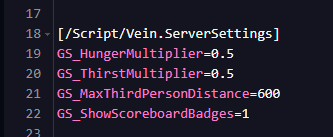
[/Script/Vein.ServerSettings]
GS_HungerMultiplier=0.5
GS_ThirstMultiplier=0.5
GS_MaxThirdPersonDistance=600
GS_ShowScoreboardBadges=1
GS_HungerMultiplier— Hunger depletion rate (lower = slower hunger).GS_ThirstMultiplier— Thirst depletion rate.GS_MaxThirdPersonDistance— Maximum third-person camera distance.GS_ShowScoreboardBadges— Displays small role icons next to player names.
All GS_ settings are fully functional and persist between restarts.
Step 6 — Optional Features (Advanced)
Discord Chat Integration
VEIN servers can forward chat messages to Discord channels using webhooks. Add these lines under [Script/Vein.ServerSettings]:
DiscordChatWebhookURL="https://discord.com/api/webhooks/..."
DiscordChatAdminWebhookURL="https://discord.com/api/webhooks/..."
These must be wrapped in quotation marks. The first URL sends player chat; the second sends admin activity (joins, kicks, etc.).
HTTP API (for Status & Monitoring)
VEIN v0.021+ includes a simple HTTP API for server monitoring. Add this line inside [Script/Vein.VeinGameSession]:
HTTPPort=8080
- Available routes include
/status,/players,/time, and/weather. - Use unique ports per server if running multiple VEIN instances on one host.
- Do not expose the HTTP port publicly without a proxy or firewall.
Step 7 — Confirm File Encoding
Ensure all configuration files are saved using UTF-8 without BOM. Using another encoding may cause Unreal Engine to ignore or corrupt lines during load.
Troubleshooting
Common Issues:
- Admins not loading: Verify your IDs are under
[Script/Vein.VeinGameSession]. - Server not visible: Ensure
bPublic=Trueand allow a few minutes for Steam to list it. - Config resets after restart: Always stop the server before editing files.
- Server crashes after edit: Revert Engine.ini to default; invalid console variables often cause crashes.
- Port conflicts: Game uses
7777 (UDP/TCP), Query uses27015 (UDP), and optional API uses8080 (TCP).
Next Steps
- How to Add Admins to Your VEIN Server
- How to Migrate VEIN Single-Player Saves to a Dedicated Server (Full Guide)
- How to Ban and Unban Players on Your VEIN Server (Full Admin Guide)
Getting Help
- Knowledge Base: Explore more VEIN hosting guides covering backups, admin setup, and server management.
- Support Ticket: Log in to your HostByte account and open a ticket.
- Discord: Join our community below:
- Status Page: Check live server status and maintenance updates at status.hostbyte.net.
