
WorldEdit is a powerful building and editing tool for Minecraft Java servers. This guide covers installation, basic selections, common edit commands, schematics, and safety tips on Spigot/Paper using the HostByte Game Panel.
Before You Start
- Platform: WorldEdit here refers to the plugin for Spigot/Paper (not the Forge/Fabric mod).
- Back up: Create a backup before large edits.
- Permissions: Use OP for testing, then grant specific WorldEdit nodes via your permissions plugin for staff.
Install WorldEdit
Method A — Plugin Manager (One-Click)
- Log in to the HostByte Game Panel and open your server.
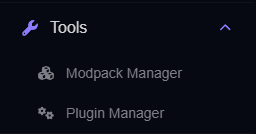
- Go to Tools → Plugin Manager.
- Search WorldEdit → select → Install → Restart the server.
Method B — Manual Upload
- Download the WorldEdit .jar for your server version.
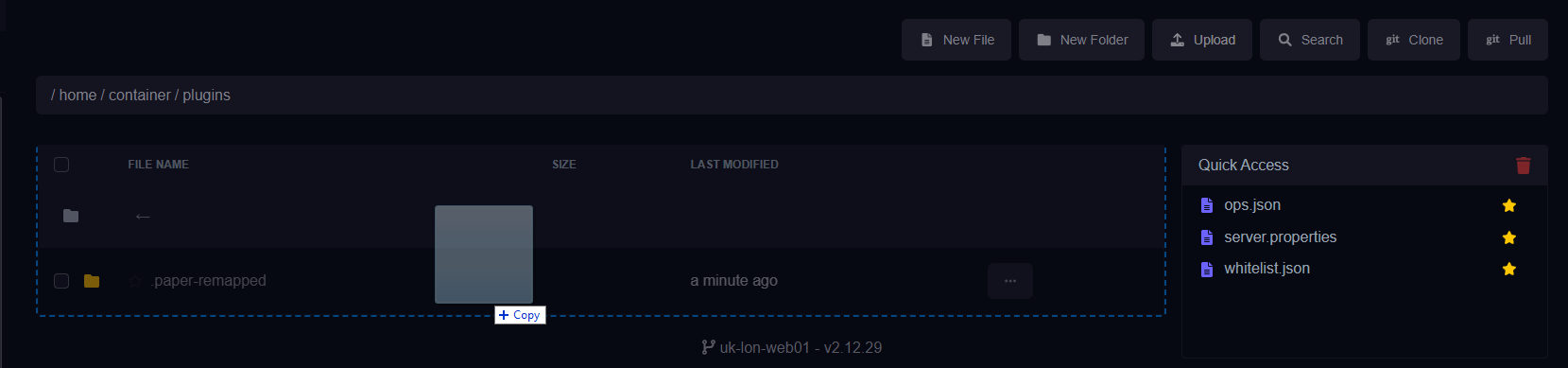
- Upload to
/pluginsvia File Manager or SFTP. - Restart and check Console for “WorldEdit enabled”.
Get Started (Selections & Wand)
- Give yourself the wand:
//wand - Select a region (cuboid):
- Left-click a block = pos1
- Right-click another block = pos2
- See your selection info:
//selor//size - Expand/contract if needed:
//expand 5 up,//contract 2 north
Common Edit Commands
- Fill / set blocks:
//set stone - Replace blocks:
//replace dirt grass_block - Copy & paste:
//copy(relative to your position)//pasteor//paste -a(skip air)//rotate 90,//flip northbefore pasting to orient builds
- Stack repeating structures:
//stack 10 east - Walls / outline:
//walls stone,//outline stone - Natural shapes:
//sphere stone 8,//hsphere glass 6//cyl oak_log 5 10(radius 5, height 10)
- Brushes (hold any item):
//brush sphere stone 3(paint spheres)//mask !airto affect only non-air, or use-aon paste//noneto clear brush
- Undo/redo:
//undo,//redo
Schematics (Save/Load Builds)
- Select the build and
//copyfrom a good reference point. - Save:
//schem save name_of_build(creates a file in/worldedit/schematics). - List:
//schem list - Load:
//schem load name_of_build→//paste(use-ato skip air).
Safety & Permissions
⚠️ Safety: Large edits can impact performance. Test on small selections first and use //undo if something goes wrong.
- Limit scope: Give staff only the nodes they need (avoid
worldedit.*for regular builders). - Combine with WorldGuard: Restrict WorldEdit to staff regions so players can’t edit the whole map.
- Config limits: In
/plugins/WorldEdit/config.ymlyou can set block-change limits per action/user.
Troubleshooting
- “No permission” errors: Grant appropriate WorldEdit nodes via your permissions plugin or test as OP.
- Edits lag or time out: Use smaller selections,
//paste -a, pre-generate with Chunky, and consider performing edits during low-traffic times. - Brush does nothing: Ensure you’re holding an item; check
//maskand brush size. - Schematics won’t paste: Confirm correct folder and matching MC versions for blocks/entities.
Best Practices
- Work in copies or staging worlds; keep recent backups.
- Use
//paste -ato avoid overwriting with air unless you mean to. - Document staff permissions and any WorldGuard region rules for editing.
Getting Help
- Knowledge Base: See related Java guides (Plugin Manager, EssentialsX, WorldGuard, backups).
- Support Ticket: Log in to your HostByte account to open a ticket.
- Discord: Join our community:
- Status Page: Check maintenance/outages: status.hostbyte.net.
