
LuckPerms is a powerful permissions and ranks plugin for Minecraft Java servers. This guide covers installation (Plugin Manager and manual), first-time setup, groups, prefixes, and common fixes on Spigot/Paper using the HostByte Game Panel.
Before You Start
- Platform: LuckPerms is a plugin for Spigot/Paper (not Fabric/Forge).
- Java: Many builds require Java 17+.
- Backup: Create a backup before major permission changes.
Method A — Install via Plugin Manager (One-Click)
- Log in to the HostByte Game Panel and open your server.
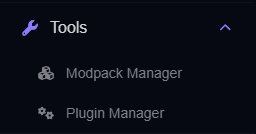
- In the left sidebar, go to Tools → Plugin Manager.
- Search for LuckPerms → click the plugin → review details → click Install.
- Return to the dashboard and click Restart.
Method B — Manual Install (File Manager or SFTP)
- Download the LuckPerms .jar from a trusted source (matching your MC/API version).
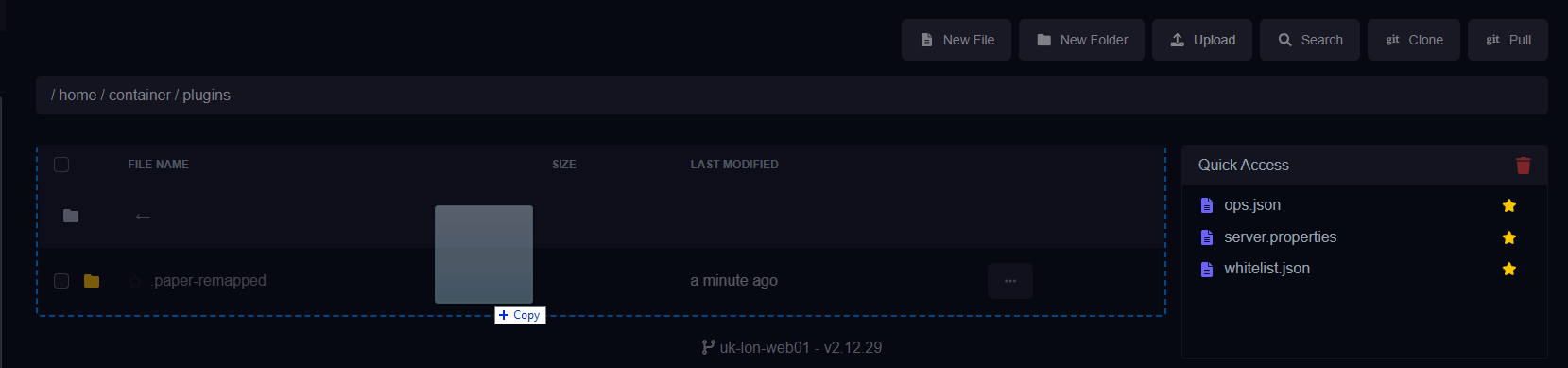
- File Manager: Upload the jar to
/plugins. Or SFTP: upload to/pluginsvia your SFTP client. - Restart the server and check Console for “LuckPerms enabled”.
How to use SFTP: https://www.hostbyte.net/billing/knowledgebase/72/How-to-Connect-via-SFTP.html
Step 1: Give Yourself Admin Access (Temporary)
From the Console (no slash):
lp user YourName permission set luckperms.* trueOr OP yourself:
op YourNameStep 2: Create Groups & Set Weights
Create a simple rank ladder (member → moderator → admin):
/lp creategroup member
/lp creategroup moderator
/lp creategroup admin

/lp group member setweight 10
/lp group moderator setweight 50
/lp group admin setweight 100
Assign default join group (make “default” inherit member):
/lp group default parent set memberStep 3: Add Permissions to Groups
Example with EssentialsX (adjust to your plugins):
/lp group member permission set essentials.home true
/lp group member permission set essentials.tpa true
/lp group moderator permission set coreprotect.inspect true
/lp group admin permission set luckperms.* true
Assign a player to a group:
/lp user PlayerName parent set member
/lp user StaffName parent set moderator
Step 4: Set Prefixes (for Chat)
Use a chat formatter (e.g., EssentialsXChat) to display prefixes:
/lp group member meta addprefix 10 "&7[Member] "
/lp group moderator meta addprefix 50 "&9[Mod] "
/lp group admin meta addprefix 100 "&c[Admin] "
Ensure only one chat formatter is active to avoid doubled formatting.
Step 5: Use the Web Editor (Recommended)
LuckPerms includes a powerful web editor to manage groups and permissions visually:
/lp editorOpen the provided URL, make changes, then paste and run the apply command it gives you (e.g., /lp applyedits <code>).
Optional: Database Storage (MySQL/Postgres)
⚠️ Note: Switch storage during maintenance. Always back up first.
- Stop the server.
- Edit
/plugins/LuckPerms/config.yml:storage-method: mysql # or postgresql, mongodb, h2/sqlite data: address: "127.0.0.1:3306" database: "luckperms" username: "lp_user" password: "strong_password" - Start the server and run:
/lp sync
Maintenance & Updates
- Update: Use Plugin Manager → update, or replace the jar in
/plugins, then restart. - Changes not applying? Run
/lp sync(especially with databases). - Export/backup: Use the web editor to review/commit; keep periodic config backups.
Common Issues & Fixes
No permission for /lp
- From console:
lp user YourName permission set luckperms.* trueor OP yourself.
Prefixes don’t show in chat
- Install and configure a chat formatter (e.g., EssentialsXChat).
- Ensure only one chat plugin formats messages.
Changes don’t take effect
- Run
/lp sync. - Check contexts (server/world) if you used them.
Database connection errors
- Verify host/port/credentials and firewall rules; confirm the database exists and user has privileges.
Best Practices
- Use groups (not per-user sprawl). Assign users to groups.
- Avoid giving
*to non-admins; grant only what’s needed. - Document your groups, weights, and key nodes for staff.
Getting Help
- Knowledge Base: See related Java guides (Plugin Manager, EssentialsX, chat setup).
- Support Ticket: Log in to your HostByte account to open a ticket.
- Discord: Join our community:
- Status Page: Check maintenance/outages: status.hostbyte.net.
