
Command blocks let you automate tasks, run server commands, and create custom gameplay mechanics. This guide shows how to enable command blocks on a Minecraft Java server using the HostByte Game Panel, plus setup tips and common fixes.
Before You Start
- Security: Command blocks can execute powerful commands. Only OP trusted staff should place/edit them.
- Back up your server (recommended) before making config changes.
Step 1: Stop Your Server
- Log in to the HostByte Game Panel.
- Open your Java server and click Stop until status is Offline.
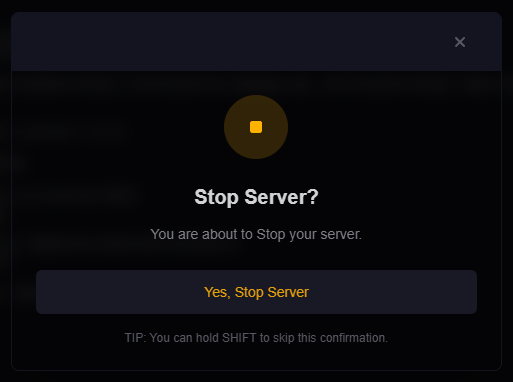
Step 2: Enable Command Blocks in server.properties
- Go to File Manager.
- Open
server.properties. - Set the line:
enable-command-block=true - Click Save.
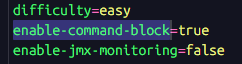
Step 3: Start the Server
- Return to the dashboard and click Start.
- Watch the Console for any errors.

Step 4: Test a Command Block
- Make yourself OP (from Console):
op YourName - In-game, give yourself a command block:
/give @p command_block - Place it, set it to Impulse & Needs Redstone, enter a simple command (e.g.
say Hello from a command block!), then power it with a button/redstone.
Optional Quality-of-Life Settings
- Reduce chat spam from command blocks:
/gamerule commandBlockOutput false
/gamerule sendCommandFeedback false
Common Issues & Fixes
“I can’t place or edit command blocks”
- You must be OP. From Console:
op YourName. - Command blocks don’t appear in the creative inventory—use
/giveor/setblock.
Command blocks do nothing near spawn
- Spawn protection can block redstone/interaction for non-OPs. Set in
server.properties:
or place the command block outside the protected radius.spawn-protection=0
Still disabled after restart
- Confirm you edited the correct
server.propertiesfor this server. - Make sure the line is exactly
enable-command-block=true(no extra spaces). - Fully restart (not just reload).
Commands not recognized / plugin conflicts
- Use the vanilla namespace (e.g.,
minecraft:give). - Check plugin configs (EssentialsX, command aliases) that may intercept commands.
Best Practices
- Limit edit rights to trusted staff (OP + protected build areas).
- Keep backups before deploying large command-block systems.
- Document any gamerule changes for your staff.
Getting Help
- Knowledge Base: See related Java guides (permissions/OP, server.properties, spawn protection).
- Support Ticket: Log in to your HostByte account to open a ticket.
- Discord: Join our community:
- Status Page: Check maintenance/outages: status.hostbyte.net.
