
This guide explains how to enable or disable the Nether and The End on a Minecraft Java server. We’ll cover the correct config files, safe steps, and how to (optionally) regenerate those dimensions.
Before You Start
- Back up your server first (see “How to Back Up Your Server”).
- Stop the server before editing configs or deleting folders.
- Know your world name: it’s the
level-nameinserver.properties(default isworld).
Where to Change These Settings
- Nether: set in
server.properties→allow-nether=true|false(Vanilla & Bukkit-based: Paper/Spigot). - The End: set in
bukkit.yml→allow-end: true|false(Bukkit-based: Paper/Spigot). Note: Pure Vanilla has no built-in “disable End” toggle.
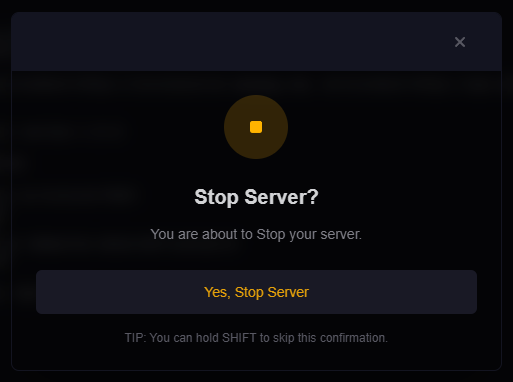
Step 1: Stop Your Server
- Log in to the HostByte Game Panel.
- Open your Java server and click Stop until status is Offline.
Step 2A: Enable/Disable the Nether (server.properties)
- Go to File Manager → open
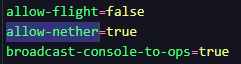
server.properties. - Set the line to:
allow-nether=true # enable # or allow-nether=false # disable - Save the file.
Step 2B: Enable/Disable The End (bukkit.yml)
For Paper/Spigot (Bukkit-based servers):
- In File Manager, open
bukkit.yml(root folder). - Find or add the line under the main section:
allow-end: true # enable # or allow-end: false # disable - Save the file.
Note (Vanilla-only): Pure Vanilla doesn’t include bukkit.yml and has no native toggle for The End. To block access, consider switching to Paper/Spigot, using a plugin/datapack, or physically preventing portal activation.
Step 3 (Optional): Regenerate or Remove Old Dimension Data
⚠️ DELETION WARNING — Deleting dimension folders permanently removes that dimension’s terrain and player progress there. Make a backup first.
Based on your level-name (default world):
- Nether folder:
<level-name>_nether(e.g.,world_nether) - End folder:
<level-name>_the_end(e.g.,world_the_end)
To regenerate a dimension after re-enabling it, delete its folder while the server is stopped. It will regenerate on next start.
Older layouts: Nether/End may exist at world/DIM-1 and world/DIM1.
Step 4: Start the Server
- Return to the server dashboard.
- Click Start and watch the Console for any errors.
Common Issues & Fixes
Players still reach the Nether/End
- Confirm the correct file was edited (
server.propertiesfor Nether,bukkit.ymlfor End). - You may need to restart (not just reload) after changes.
- Plugins can override behavior (portals, teleports). Check portal/transport plugins.
Portals exist but don’t work
- This is expected when a dimension is disabled—portals won’t function.
- Consider removing/covering portals in survival worlds to avoid confusion.
Players were logged out in a disabled dimension
- Re-enable temporarily and
/tpthem to the Overworld, then disable again. - Or edit player data with admin tools to move their location (advanced).
Regeneration didn’t happen
- Ensure you deleted the correct folder while the server was stopped.
- Check for alternate world folders (custom
level-name, orDIM-1/DIM1on older setups).
Best Practices
- Back up before toggling or deleting dimension folders.
- Document your chosen settings for staff (
allow-nether,allow-end). - Use plugins to block portals in lobbies/hubs even if dimensions are enabled.
Getting Help
- Knowledge Base: See related Java guides (world reset, backups, Multiverse).
- Support Ticket: Log in to your HostByte account to open a ticket.
- Discord: Join our community:
- Status Page: Check maintenance/outages: status.hostbyte.net.
