
How to Install Prop Hunt: Enhanced on a Garry's Mod Server
Prop Hunt: Enhanced is a popular Garry's Mod gamemode where players disguise themselves as props while hunters try to find them. This guide shows you how to install Prop Hunt: Enhanced on your server using the HostByte Game Panel.
Step 1: Access Your Game Panel
- Go to game.hostbyte.net
- Log in to your account
- Select your Garry's Mod server
- Click Manage
Step 2: Install Prop Hunt: Enhanced Using Mod Manager
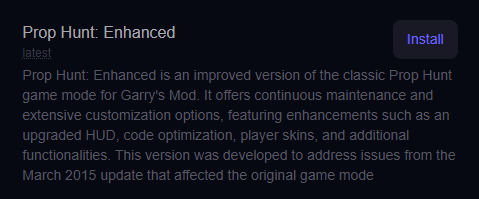
The easiest way to install Prop Hunt: Enhanced is using the built-in Mod Manager.
- Go to Tools → Mod Manager
- Find Prop Hunt: Enhanced in the list
- Click Install
- Wait for the installation to complete
Tip: The Mod Manager handles installation automatically, including required files.
Step 3: Set Prop Hunt as Your Gamemode
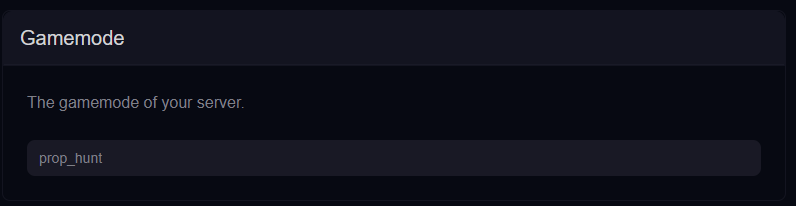
- Go to Startup settings
- Locate the Gamemode option
- Set it to:
prop_hunt- Save your changes
- Restart your server
Note: The gamemode name must match the installed gamemode.
Step 4: Install Prop Hunt Maps
Prop Hunt requires compatible maps to function properly.
- Install maps via Workshop collections
- Upload maps manually using the File Manager
- Use maps with the prefix ph_
Step 5: Join Your Server
- Copy your server IP and port from Server Details
- Open Garry's Mod
- Join via Favorites or console:
connect 123.45.67.89:27015⚠️ Common Issues
Gamemode Not Loading
- Ensure prop_hunt is set correctly in Startup
- Restart the server after changes
- Check console for errors
Missing Textures or Props
- Some maps may require additional game content
- Install required content using the Mod Manager
Maps Not Working
- Ensure maps are compatible with Prop Hunt
- Check map names start with ph_
- Install missing maps if needed
Next Steps
- Install more Prop Hunt maps
- Customize gameplay settings
- Set up admin permissions
- Enhance your server with addons
Getting Help
- Knowledge Base: Explore more guides for configuration, setup, and troubleshooting.
- Support Ticket: Open a ticket from your HostByte account if you need assistance.
- Discord: Join our community below.
- Status Page: Check live updates at status.hostbyte.net.
